Quick How-to get a Virtual server on Digital Ocean, get $10 for it and prepare to install VPN/Proxy software to bypass your ISP censorship.
Disclaimer
There are referral links to the hosting of Digital Ocean. For registration on it you will be given $10 right away, enough for a couple of months of experiments with hosting. Consider using this link as a way to support my blog. You are totally free to use someone else's link, I don't mind at all, and it does not change the following manual.
What do we do
Create an RSA key It is required to access the server through the terminal
We rent a virtual server for Digital Ocean You can and any other hosting, the main thing that he was in a country where there are no Internet locks. I chose DO because they give the beginner $ 10 when registering via a referral link , this will be enough for 1-2 months of server rent. Skip this step if you like other hosting.
What will you need
A personal computer I'll show you the example of Windows, for other systems the process is very similar.
About 15 minutes of your time To configure all software
PayPal / Visa / Mastercard without money It will take no more than 0.1 dollars, and then return: you need to activate bonus 10 dollars Digital Ocean (enough for two months).
Create an RSA key
Use the instructions from here . In short, the actions are:
Download PuTTY, Pageant and PuTTYgen from here.
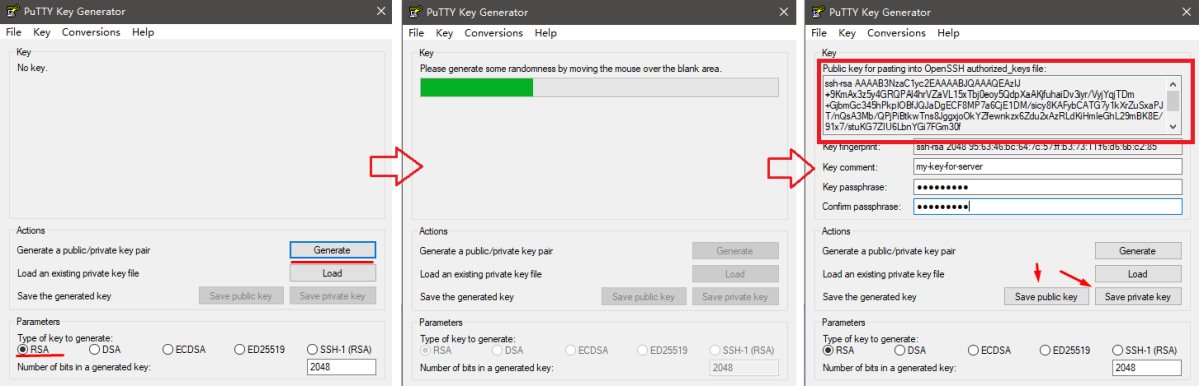
Launch PuTTYgen, create the keySelect RSA 2048 type, click Generate, move the mouse in an empty field. When the process is complete, add a comment to remember what kind of key it is, think of a passphrase (such as a password, do not forget it!), Save the Private Key. In addition, copy and save a bunch of text from the top field 'Public key ...', it will come in handy in the next step.
Renting a server
Go to Digital Ocean at this link, register a new account. This link will give $ 10 bonus, so as not to pay out of your pocket for experiments. If you just go on DO, then nothing will be given, you will have to immediately replenish your blood.
Bind a PayPal or bank card Otherwise, the bonus money is not activated. From the card can remove a few cents to confirm, then return. With PayPal, I did not take anything off. The payment process is transparent, suddenly the money from the card will not be taken away.
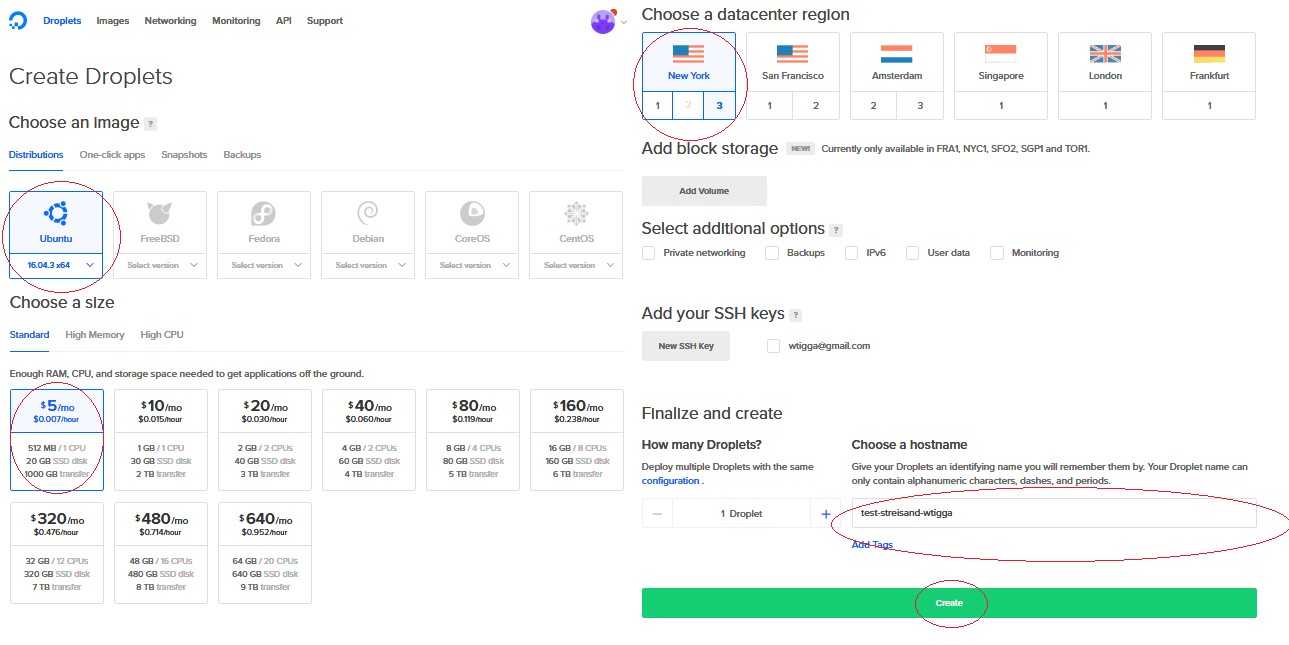
Create a new Droplet This is the name of the virtual server. Follow this link, choose the parameters to taste.Distributions: Ubuntu 16.04 x64 or 17.04 Standard: $ 5 / mo (five USD per month, pay by the hour - until all of the bonus money) Choose a datacenter region: any . I do not recommend Singapore and Bangalore, from China the speed is worse than before American servers. Select additional options: nothing Choose hostname: any , for yourself. Add your SSH keys: click the New SSH Key button, in the text box, insert a bunch of text that we saved from PuTTYgen ' Public Key ' in the first step.
Click Create.
Connecting to the server
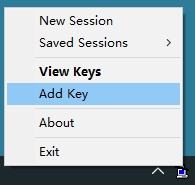
Run pageant.exeThe program appears in the tray next to the clock. Right click, select 'Add key' and find the file with the * .ppk key that we saved in the very first item via PuTTYgen.
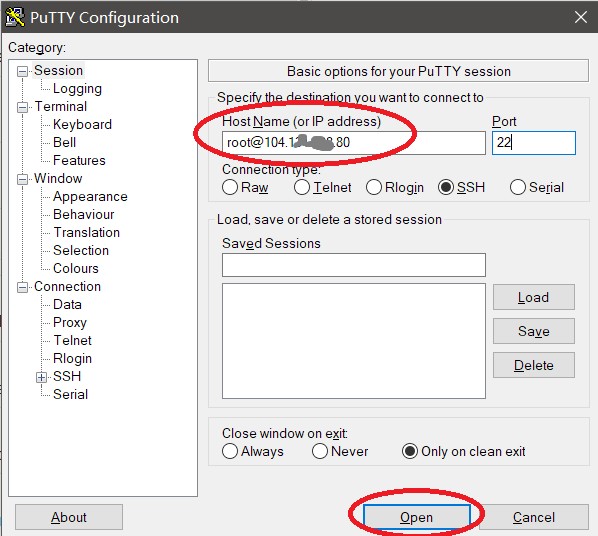
Launch Putty This is a program for accessing the server via SSH. Download it here. If you have a Mac, use the terminal and the # ssh command.
Connect to the server In the Host Name field, type: root@IP- address , for example root@104.138.37.80 , click Open.
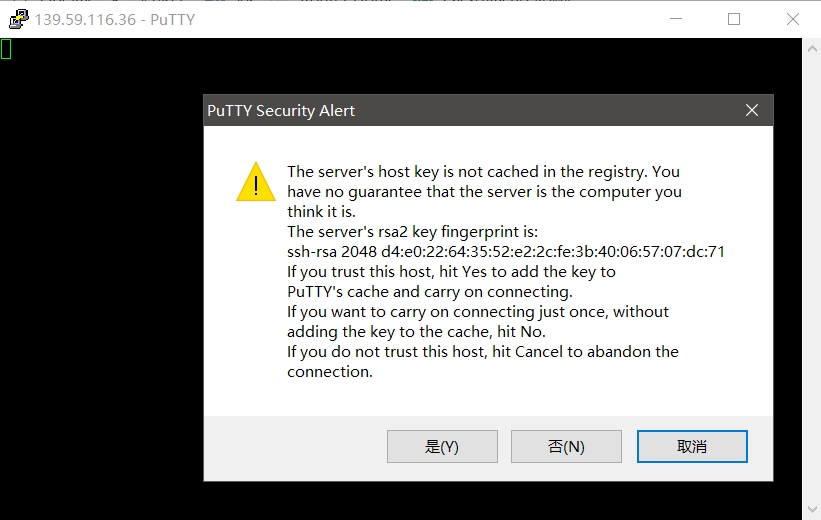
Agree to trust the server When you see this message, click Yes. All okay, nothing terrible.
Done
Congratulations, you have a server, and you can manage it. Now here you can put Streisand, Shadowsocks or NextCloud, for example.